Whether you're trying to grow your online presence, win more reviews, or stay top of mind in your market, Marketing Suite gives you the tools to do it without adding anything to your workload.
Here’s your quick-start checklist to get started.
Find Marketing Suite In Your Account
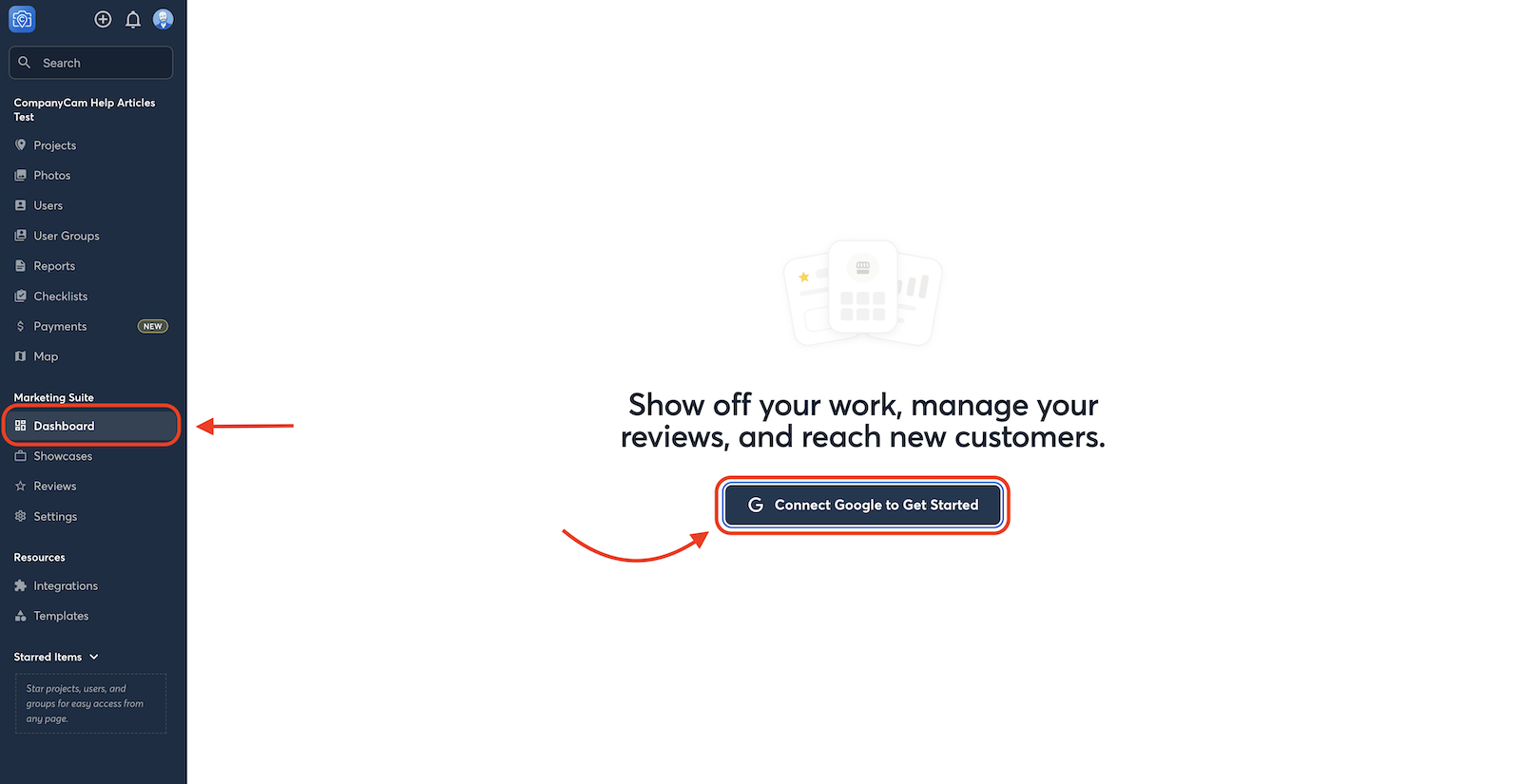
Head to the Marketing tab in the left nav on desktop.
Connect Your Social Channels
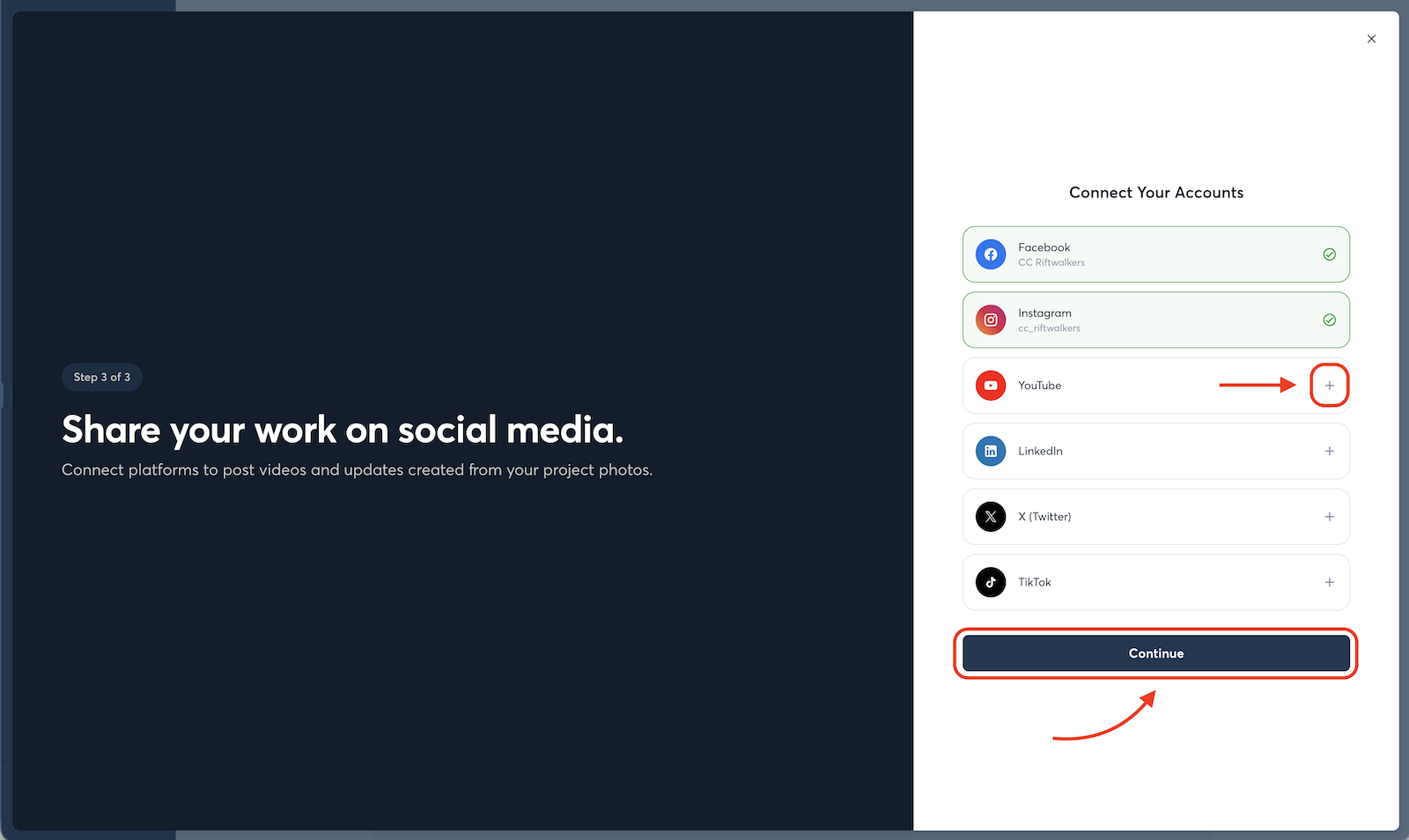
Connect as many or as few as you like—Facebook, Instagram, LinkedIn, X, TikTok, YouTube. Connect them all upfront so, when you're ready to post, you can easily select which channels you want to publish to. A little prep work you'll thank yourself for later: it means posting to every platform you care about in a single click.
Our AI scans your project photos, tags, and descriptions to generate captions tailored to each platform's tone and SEO best practices, so your Instagram post sounds like Instagram, and your LinkedIn post sounds like LinkedIn. That's the heavy lifting we're taking off your plate so you can stay focused on being a contractor, not a marketer.
Connect your Google Business Profile
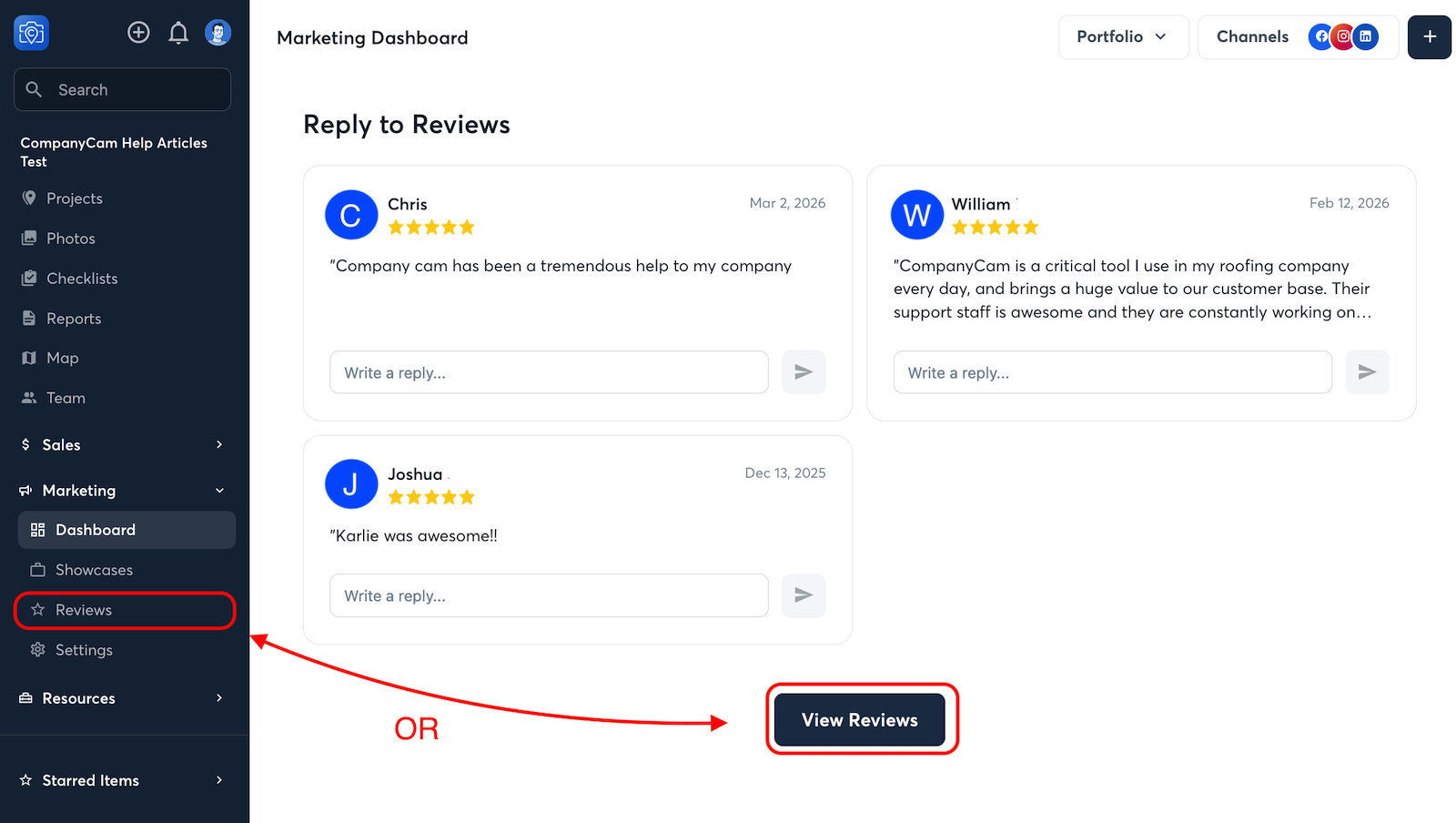
Your Google Business Profile is one of the most valuable tools you have for getting found online. Google is where most homeowners start their search for a contractor, and an active, photo-rich profile helps you show up when they do. With two-way sync, you can manage your Google Business Profile directly from CompanyCam, including responding to reviews without ever leaving the app.
Here's what you can manage:
- Business hours
- Services offered
- Service locations
- Business description
- Contact information (phone, website, email)
- Business categories
Pro Tip: You can connect multiple Google Business Profile locations. Many CompanyCam users own multiple businesses or franchise territories. Marketing Suite makes it simple to manage and update them all from one place.
Publish Your First Showcase
First, you might be wondering: what's a Showcase? A Showcase is a polished package of your finished work—photos, captions, and all—that you can publish across your social channels and your website at once.
To have Showcases sync to your website, copy and paste an embed code into your website builder. Follow those steps here. Once it's done, your portfolio updates itself every time you publish a new Showcase, no web developer required.
Now the fun part—showcasing your work!
Pick any completed project, or choose one we surface for you (we flag projects that haven't had any new activity in the last 7 days). From there, follow these steps:
- Create your Showcase. AI selects the best photos from the project and fills in the copy: title, captions, and more. Review everything, swap out photos, edit captions, and adjust tags until it looks the way you want, then hit confirm.
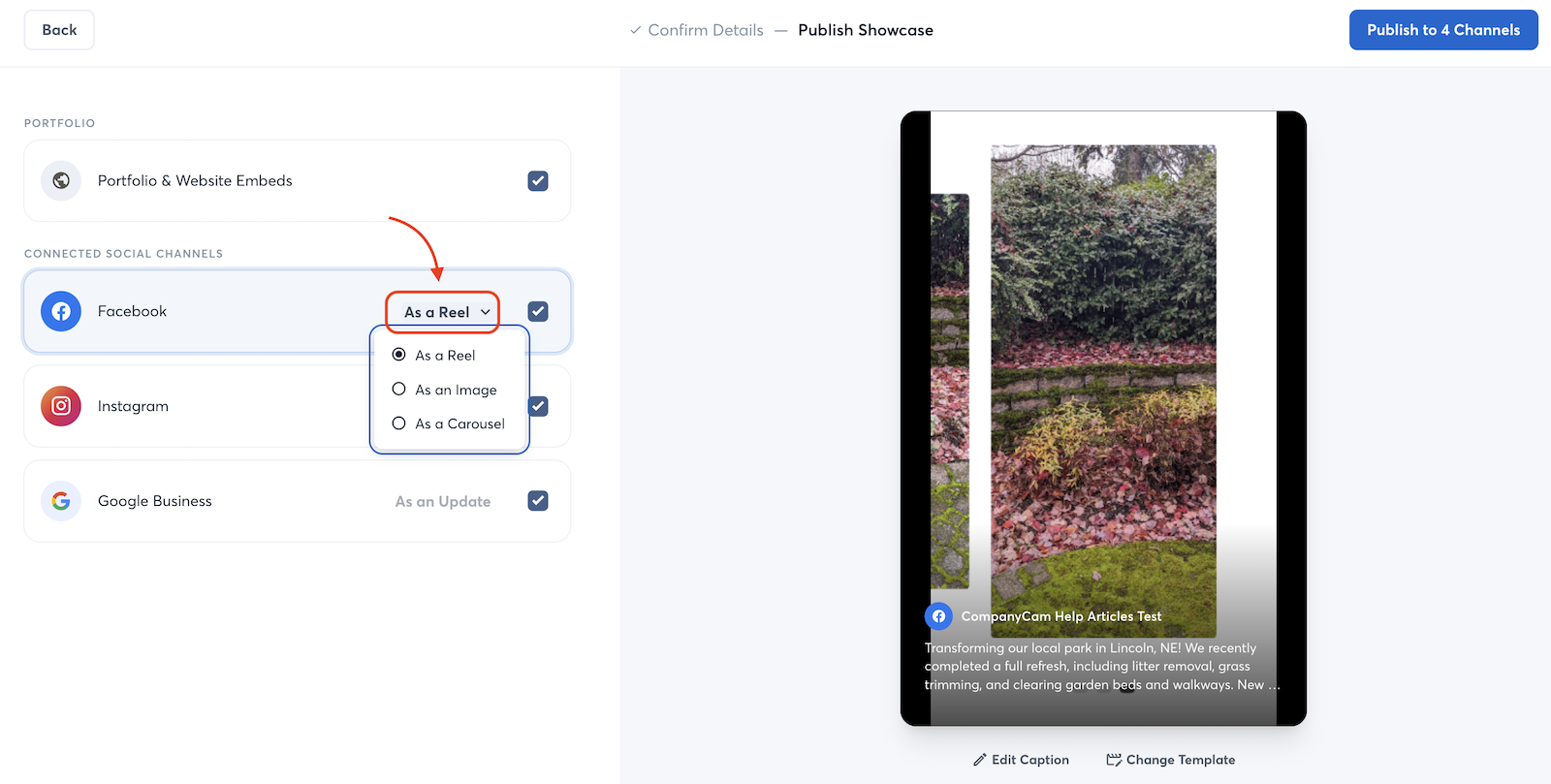
- Create your social posts. Select your platforms (Facebook, Instagram, LinkedIn, etc.), choose a post format (image, carousel, or reel), and edit your captions before publishing. If you haven't connected your social accounts yet, you can do that here, too.
- Publish your Showcase. When you're happy with it, publish it across your website, social channels, and Google Business Profile all in one click. Want to spread your social posts out? Use post scheduling to batch your content and let it go out automatically throughout the week.
Pro Tips:
- Publish Later: You can always go back to any published Showcase and push it to your social channels after the fact.
- Add Music: Give your video reel a little personality by adding a music track before you publish.
- Choose Your Format: You can control how your post appears on each platform. Toggle between a reel and a carousel depending on what performs best for your audience.
Request Reviews
You can request reviews directly from CompanyCam and prompt customers to include photos. Sending the request from CompanyCam means your customer gets a direct link that makes leaving a review quick and painless: no awkward asks, no hunting for your profile.
The link includes hand-selected photos from the job, giving your customer everything they need to leave a detailed, photo-backed review. Photo-backed reviews carry more weight in Google's local search ranking and help potential customers see the quality of your work before ever calling you.
Timing matters too. Customers are most likely to leave a review in the 24–48 hours after a job is completed, so add request reviews to your standard closeout checklist and make it a habit on every job.
Best Practices
Marketing Suite works with any project in CompanyCam. But these habits will make your results dramatically better over time.
Get More Out of Every Project
- Take before photos on every job. Before-and-after content performs better across every platform. Make "snap a before photo" the first thing every crew member does on every job site.
- Document the whole job. In-process photos of your crew, materials, and work give the AI the context it needs to build a stronger Showcase. The more variety you capture beyond just the finished product, the better your content will be.
- Add descriptive project labels. Project labels give the AI extra context beyond your photos, helping it understand the type of work and produce more accurate content. Examples: Residential, Roof Replacement, Asphalt Shingles, Interior Remodel, Hardwood Floors, New Construction, Commercial.
- Showcase within a week of completion. Build "tap Showcase" into your project closeout routine so it becomes habit, not an afterthought. Fresh content performs best.
- Set aside dedicated time for marketing. Choose one consistent window each week to knock out posting, respond to reviews, and make sure your GBP is up to date. Post scheduling makes this even easier: batch your Showcases in that window and let them go out automatically throughout the week.
- Keep your GBP profile complete. Fill in your services, hours, and service area in CompanyCam and it keeps your Google Business Profile updated automatically via two-way sync. Everything stays current in one place, and if you manage multiple locations, you can update them all without jumping between accounts or logging into Google.
- Don't skip average-looking jobs. You don't need magazine-worthy photos. Consistent documentation of everyday jobs builds credibility and search visibility over time.
Explore More
Get your entire team up and running with these additional guides:
- CompanyCam for Owners
- CompanyCam for Office Administrators
- CompanyCam for Project Managers
- CompanyCam for Crew Members
- CompanyCam for AI Users
- CompanyCam for Sales Reps
And be sure to bookmark our help site to find quick answers to your questions as they come up.