
Your crew shoots hundreds of photos a week. Real work, real jobs, real results. Almost none of it ever reaches a potential client.
It sits in a camera roll while you pay an agency, do it yourself on a Sunday night, or skip it altogether. Marketing Suite turns the documentation you're already doing into marketing that's actually seen.
Here's why it works, how to set it up, and what to do every week once it's up and running.
Why your job site photos are your best marketing
The marketing is made from work you already did. No shoot day, no writing session, no agency brief. The jobs you finished last week are the content.
It's already in CompanyCam. No second tool, no second login, nothing new for the crew to learn. They keep taking photos the way they already do, and the marketing gets built out of it.
And it lands where a potential client would actually look: your social channels, your Google Business Profile, and your own website. Not a folder on your desktop. Your photos prove three things an ad never will, that the work is yours, that it's recent, and that it happened nearby.
Connect your channels
Marketing Suite can build you great content, but it has nowhere to put it until you connect the places it goes.
Every platform is a different room full of different people. The person scrolling Instagram isn't the property manager on LinkedIn, and neither of them were looking for a contractor when your work showed up. That's the point. Connecting one channel gets you in front of the people who already follow you. Connecting all of them gets you in front of people who've never heard of your company.
Your Google Business Profile is the other half of the puzzle. When someone decides they need a roofer, they don't open Instagram, they begin a search. An active profile with recent photos of real jobs is what puts you in the results of that search they're doing.
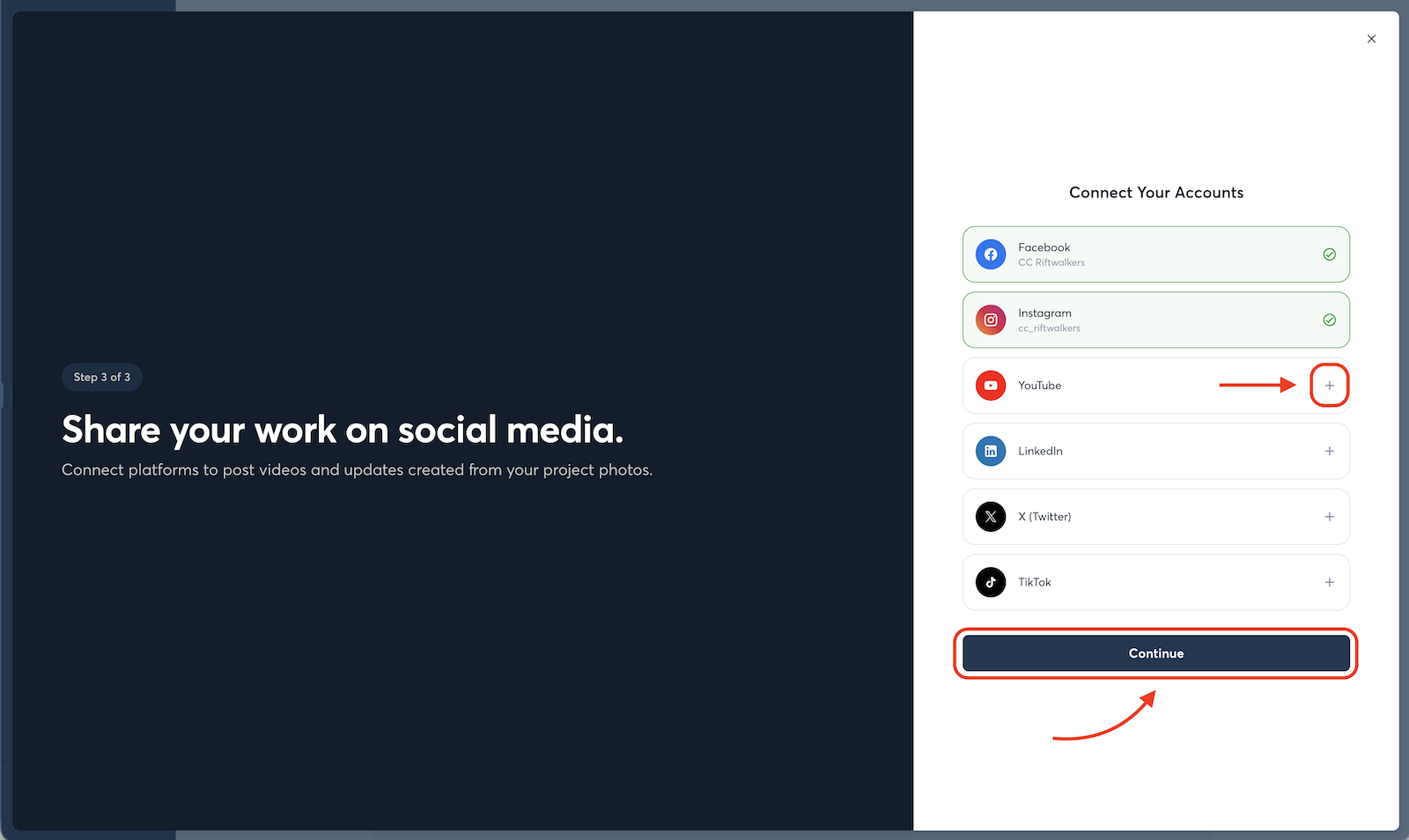
Here's the setup:
- Go to the Marketing tab in the left nav on desktop. That's home base for everything below.
- Connect your social accounts: Facebook, Instagram, LinkedIn, X, TikTok, YouTube. Connect all of them now, even the ones you rarely post to. Publishing later becomes one click instead of a setup project.
- Connect your Google Business Profile. Two-way sync means you manage your hours, services, service areas, and reviews from inside CompanyCam.
Optimize your Google Business Profile
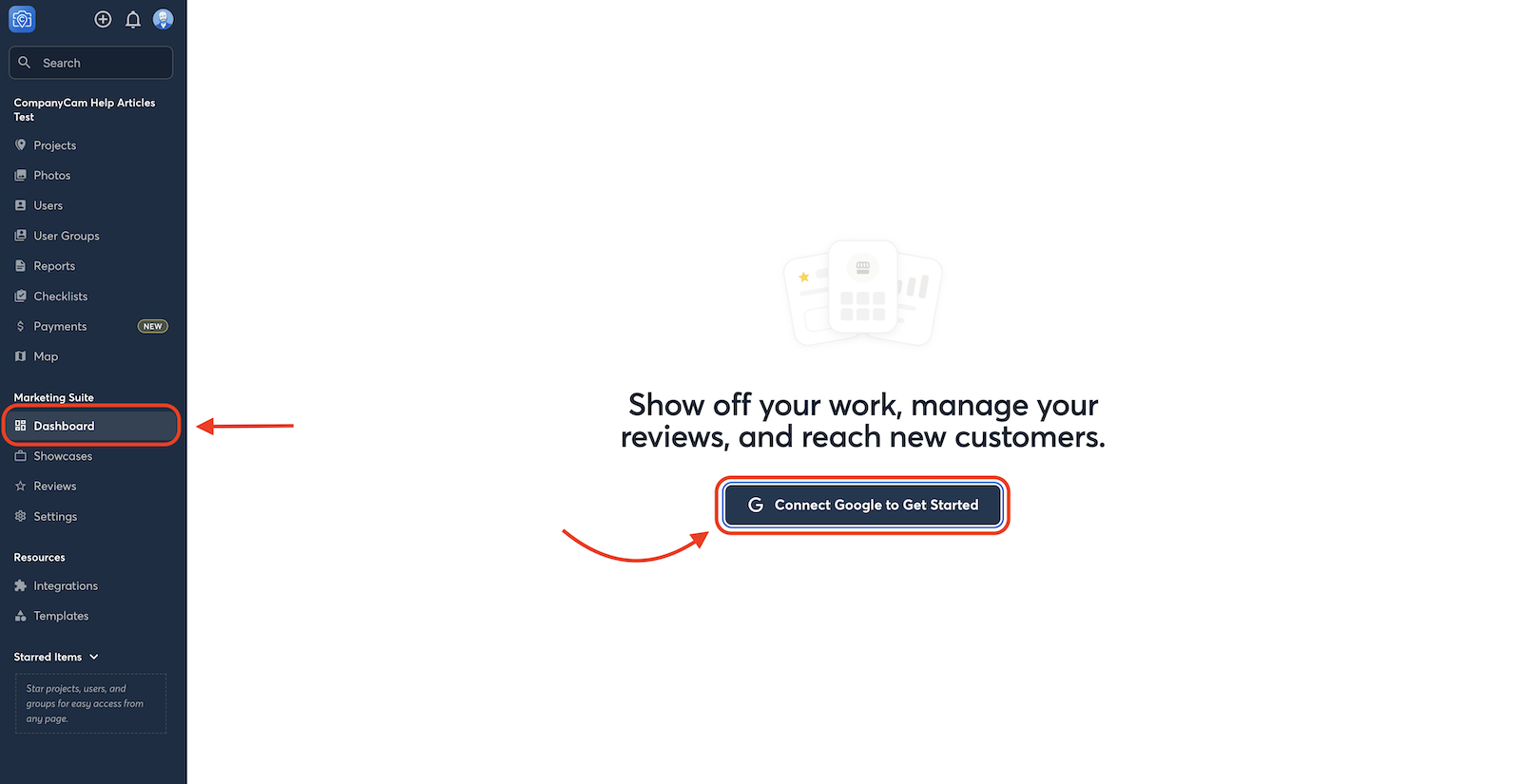
Three things move your ranking in local search, and Marketing Suite handles all three.
- Having a review count above 40.
- An accurate primary category for your business.
- Ensuring your profile has photo uploads within the last 90 days.
Requesting reviews at closeout, keeping your category current, and publishing project photos are what keep those three in good shape.
Turn a completed project into marketing
A Showcase is a finished job packaged as content: your best photos, a title, captions, and project details, ready to publish.
Before you build your first one, do the website part once. In the Portfolio tab, copy the embed code and paste it into your site builder.
Two things live there: the Portfolio Gallery, a browsable grid of your projects, and the Portfolio Map, your completed jobs pinned by location. Set them up now and every Showcase you publish from here on lands on your website automatically, no web developer, no second step.
Then build the Showcase:
- Pick your photos. AI selects the strongest shots from the job. Swap, add, or reorder until it looks like work you'd want to be judged on.
- Add project details. Title, project type, materials used, a short description. These give the AI context, and they become the filters clients use to browse your gallery.
- Review the copy. AI writes the title and captions from your photos, tags, and descriptions. Read it, fix anything that isn't how you'd say it, then confirm.
- Publish. It goes to your social channels, your Google Business Profile, and your website.
Share a project that's still going
You can also share content online while the project is still happening. You don't have to wait until a job is finished because the work in progress is some of your best material.
Tear-off day, the rough-in, the part nobody sees once the drywall goes up. Posting the stages shows people how the work actually gets done, which is the difference between looking like a contractor and looking like the contractor who knows what they're doing.
It also gives someone a reason to come back. If they saw the demo on Monday, they want to see the finish on Friday.
To post from a job in progress:
- Go to the Social Posts tab in the left nav.
- Choose the project.
- Proof the generated captions if you'd like. Copy is created per platform in the ideal writing style for each
Pro tip: Publishing to everywhere at once doesn't mean giving up control of what lands where. Nothing publishes without your approval, and you can change any of it before it goes.
Captions are written to match each platform, so your Instagram post reads like Instagram and your LinkedIn post reads like LinkedIn. You are free to edit any of them.
- Choose your format per platform. Single image, carousel, or a video reel built from the project photos. Toggle between reel and carousel depending on what your audience actually watches.
- Add a music track to a reel before you publish.
- Use post scheduling to batch a month of content in one sitting and let it release through the week.
- Push any already-published Showcase to your social channels later.
Best practices
Once a week, an hour tops
Pick one window and keep it. Schedule out all your content for the week, close out your finished projects with a Showcase and a review request, and respond to every review that came in since last time. That's the whole routine. Everything in this guide works if that hour happens each week.
- Schedule your content for the week in one sitting.
- Close out finished projects with a Showcase and a review request.
- Respond to all your reviews from the previous week.
What to tell your crew
Three habits make everything you publish better.
Take a before photo on every job.
It's the one shot you can't go back and get. Once the work starts, that version of the house is gone.
Document the middle, not just the finish.
Crew shots, materials, in-progress work. Variety is what lets a Showcase tell a story instead of showing a result.
Label your projects.
Project types and materials give the AI context beyond what it can see, and they become the filters a potential client uses to browse your gallery. Examples: Residential, Roof Replacement, Asphalt Shingles, Interior Remodel, Hardwood Floors, Commercial.
Ready to Get Started?
Current CompanyCam user? Check out the Marketing Suite yourself!
Not on CompanyCam yet? See how it all works with a personalized demo.
Explore More
Get your whole team up and running with these guides:
- CompanyCam for Owners
- CompanyCam for Office Administrators
- CompanyCam for Project Managers
- CompanyCam for Crew Members
- CompanyCam for AI Users
- CompanyCam for Sales Reps
And be sure to bookmark our help site to find quick answers to your questions as they come up.