

If you take photos or videos on the job site, CompanyCam is built for you. The CompanyCam app automatically syncs your jobsite photos to the cloud, organizing them by project so your entire team can access them from anywhere. Whether you are in the field or back at the office, everything stays connected in real time.
This beginner’s guide explains what CompanyCam is, how it works, and how to use it to document projects, manage your team, and generate reports faster.
What is CompanyCam?
CompanyCam is a field-to-office documentation app designed for contractors of all sizes. It centralizes photos, videos, notes, tasks, reports, and payments in one place. Instead of digging through camera rolls or text threads, everything ties directly to a project.
CompanyCam goes beyond photo storage. With AI reporting tools, photo checklists, in-app communication to document management, payments, portfolios, and more, it supports your full jobsite workflow. From first inspection to final invoice, you can manage your project without switching platforms.

Adding & Managing Your Team
Get your crew onboarded quickly and easily by entering their email addresses, assigning permissions, and sending invites. Once your team is added, you can communicate through project conversations, comments, and task assignments.
Whether you have three crew members or a team of 50, getting them added is the first step. It’s simple:
- Enter their email address
- Choose their permission level
- Send the invite
For more details, check out this helpful guide with step-by-step instructions to invite and add new users.

In-App Communication
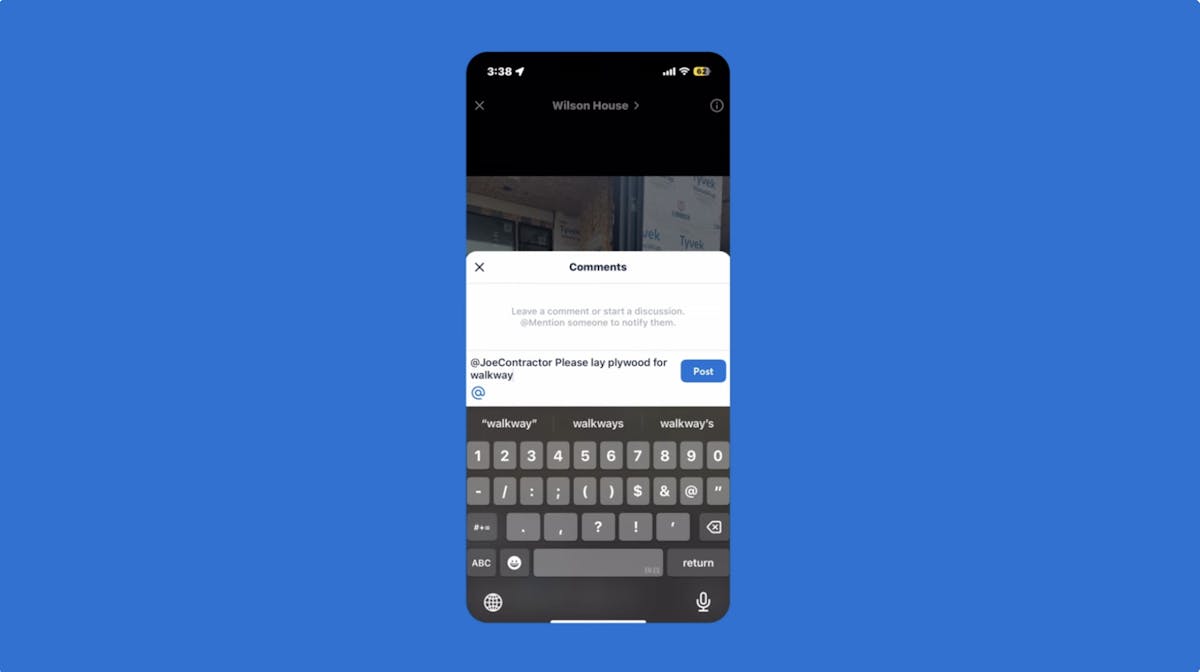
Once your team is in the app, communicating on a project is super simple. You can use project conversations, comment on each other’s photos and videos, or even assign tasks to ensure the work gets done. Using an @mention sends your team notifications to ensure they see it.
Creating Projects
Now that your team can talk, it’s time to create your first project. When you or your team arrives at the job site, just click “Create Project,” and we’ll use your GPS location to show you the addresses nearest you.
Once you’ve created it, the project is saved by its location. Any photos taken are automatically organized within the project by date, time, and the person who took them.

Tags, Annotations & Filtering
A picture is worth a thousand words, but sometimes you need more. That’s why our camera makes it easy for you to add notes and descriptions to your photos.
Photos and videos taken in CompanyCam can be tagged, so you can easily find them later. You can add annotations and drawings on top of your photos to provide more context. Everything you capture is easy to find later using search and filter features.
Filter by tags, users, or labels to find the information you need. You can even filter by date to locate a photo from day one, then use before-and-after templates to line it up with the final result to show off your work.

Photo Checklists and Task Tracking
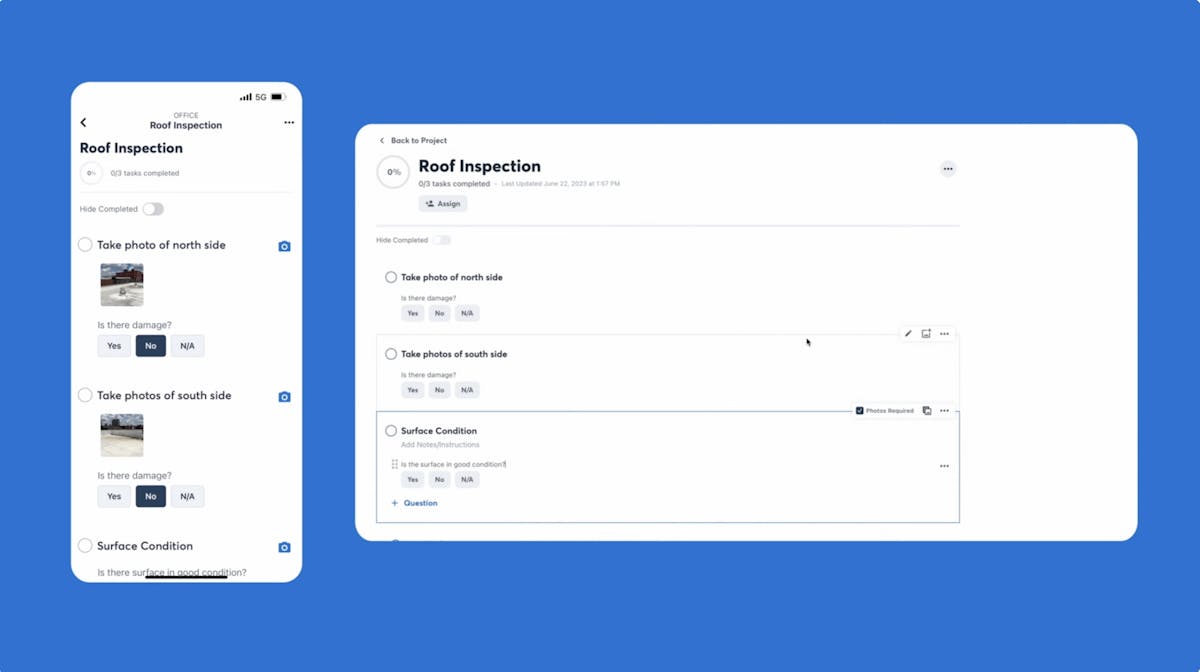
Every job site has a lot of moving parts. That’s where checklists come into play. You can track everything happening, create custom lists, and check off tasks as you go.
You can even create a photo checklist that requires your team to add photos before completing a task. Assign this to a crew member, and they’ll go through the checklist, capturing every photo you need to ensure you have all the required project information.
Collaboration & AI Tools
Pages are your team’s digital notebook. This is a great collaborative space to share job site details, photos, and notes to keep everyone on the same page — literally.
Pages become even more impactful when you use CompanyCam’s AI reporting tools to generate shareable overview documents, organized notes, and summaries to share with your team and customers.
Instead of typing reports at the end of the day, you can turn captured jobsite activity into structured documents in seconds. These reports are easy to share with customers, office staff, or insurance adjusters.

Sharing Updates
Need more ways to share progress and status updates with subcontractors, insurance adjusters, or clients?
Share an entire timeline to provide a live feed of photos, or choose your favorites to share as a gallery. For a more professional look, create a PDF photo report. Save documents right in your projects too.
Those same timeline sharing tools are what a utility company uses to keep local government agencies, contractors, and community leaders aligned on infrastructure projects, without anyone needing to visit the site.

Documents, Signatures, and Payments
Bills, bids, and contracts can pile up quickly. Just scan or upload your documents into CompanyCam, so you never lose an important document again. Then request, track, and collect signatures on your documents directly from CompanyCam.
You can also request and collect payments, reducing delays and simplifying your billing process. Keeping documentation and payments together helps close projects faster.

Integrations and Workflow Setup
CompanyCam integrates with more than 50 platforms and connects with thousands more through Zapier. This allows you to sync data with your CRM, estimating software, or accounting tools. The Chrome extension also lets you access and attach CompanyCam photos from nearly any website.
This flexibility ensures the platform fits into your existing workflow instead of forcing you to change it.
How Does CompanyCam Work?
At its core, CompanyCam automatically organizes jobsite documentation by project. Crews capture photos and videos in the app, and everything syncs instantly to the cloud. Managers can review progress, communicate with the team, generate reports, and share updates without leaving the platform.
If you are wondering how to use CompanyCam, the best way to learn is to start with one active project. Create it, invite your team, capture photos, and explore reporting features as you go. The system is designed to feel intuitive from day one.
Still Have Questions?
Jump into our community forum built for tradespeople. It’s where crews, business owners, and pros swap tips, ask questions, and share real-world advice that actually works.
Got something to say or something to figure out? You’ll find your people here.
Not sure if it’s the right fit for your operation? Start with these three questions to ask before buying any field software — then come back here when you’re ready to dig in.