
Managing construction projects means keeping track of what’s happening on the job site, coordinating your crew, and making sure work stays on schedule. Whether you’re managing one job or several at once, having access to current project information helps you make decisions and keep work moving.
CompanyCam is a job site visibility platform that helps contractors run the work. From setting up projects and assigning tasks to tracking progress and sharing updates, CompanyCam connects your field and office teams around the work happening on every job.
This guide covers five essential CompanyCam features to help you get started:
- Projects: Keep job details, photos, documents, and team activity organized in one place so everyone has access to the information they need.
- Checklists & To-Dos: Create repeatable processes, assign responsibilities, and track completed work throughout each project.
- Comments & Mentions: Communicate directly with team members about job site conditions, questions, and next steps.
- Company Dashboard: Review activity across projects to see what your crews are working on and where updates are happening.
- Documents & Reports: Turn project information into reports, daily logs, and customer updates that communicate what’s happening on the job.
1. Projects
Every job starts with a project in CompanyCam. Creating a project gives your team a central place to access job details, photos, documents, and updates throughout the work.
As your crew documents progress, that information stays connected to the project. Owners and project managers can review activity, check job conditions, and access the details they need to coordinate work from the office or field.
With Projects, you can:
- Organize job information: Keep project photos, documents, notes, and activity connected to the correct job.
- Assign team members: Give employees access to the projects they’re working on.
- Track project status: Use project labels to identify active jobs, completed work, or other stages of your process.
- Review job history: Look back at project photos and updates to understand what happened throughout the job.
- Manage completed jobs: Archive finished projects while keeping their information available for future reference.

How to create a new project
- Open CompanyCam on mobile or desktop.
- Select + Project to create a new project.
- Enter the project name and address.
- Select Create Project to save your project.
- Add team members who need access to the job.
Once your project is created, your crew can begin capturing photos and adding updates. Photos taken through CompanyCam include timestamps and location information, giving project managers a visual history of documented work.
How to manage project activity
Project labels help you organize jobs based on their status, type, or priority. You can create labels that match your company’s process and use them to find relevant projects.
When a job is complete, archive the project to keep your active project list focused on current work. The archived project remains available when you need to reference previous photos or job details.
2. Checklists
Construction projects involve tasks that need to happen at specific stages of a job. Checklists help contractors organize those responsibilities and give team members a clear record of what needs to be completed.
You can create checklists for recurring processes, such as roof inspections, job site walkthroughs, or final quality checks. Team members can work through each item, add supporting photos, and document completed work directly within the project.
With Checklists, you can:
- Standardize recurring work: Build checklist templates for inspections, installations, and other repeatable processes.
- Assign responsibilities: Give specific team members tasks to complete within a project.
- Track outstanding work: Review checklist progress and identify items that still need attention.
- Document completed tasks: Add photos and notes to provide context about the work performed.

How to create a checklist
- Open the project where you want to create a checklist.
- Navigate to the project’s checklists.
- Create a new checklist or select an existing template.
- Add items that your crew needs to complete.
- Assign the checklist to the appropriate team member when needed.
As work progresses, team members can mark items complete and attach relevant information. Project managers can review the checklist to see which steps have been documented and what remains outstanding.
How to use checklists on the job
A roofing contractor might create a roof replacement checklist that covers tear-off, underlayment installation, flashing, and final cleanup. Crew members can document each stage with photos and mark items complete as they finish the work.
The project manager can review the checklist alongside the job’s photo history to verify documented progress and identify the next steps. Teams can also create to-dos for individual items that need follow-up outside the standard checklist.
3. Comments & Mentions
Questions and updates come up throughout a construction project. Comments and mentions let field and office teams communicate directly within a project, keeping conversations connected to the work being discussed.
Team members can leave comments on photos, mention coworkers who need to review an update, and provide additional context about job conditions. This gives everyone involved access to the relevant information when reviewing project activity.
With Comments & Mentions, you can:
- Communicate job site updates: Add comments to photos to explain completed work or conditions that need attention.
- Notify team members: Use @mentions to bring specific employees into a conversation.
- Clarify job details: Use photo annotations to highlight areas that need review or additional work.
- Keep conversations connected: Reference previous comments and photos when following up on a job.
- Coordinate next steps: Discuss what needs to happen before the crew moves to the next stage.
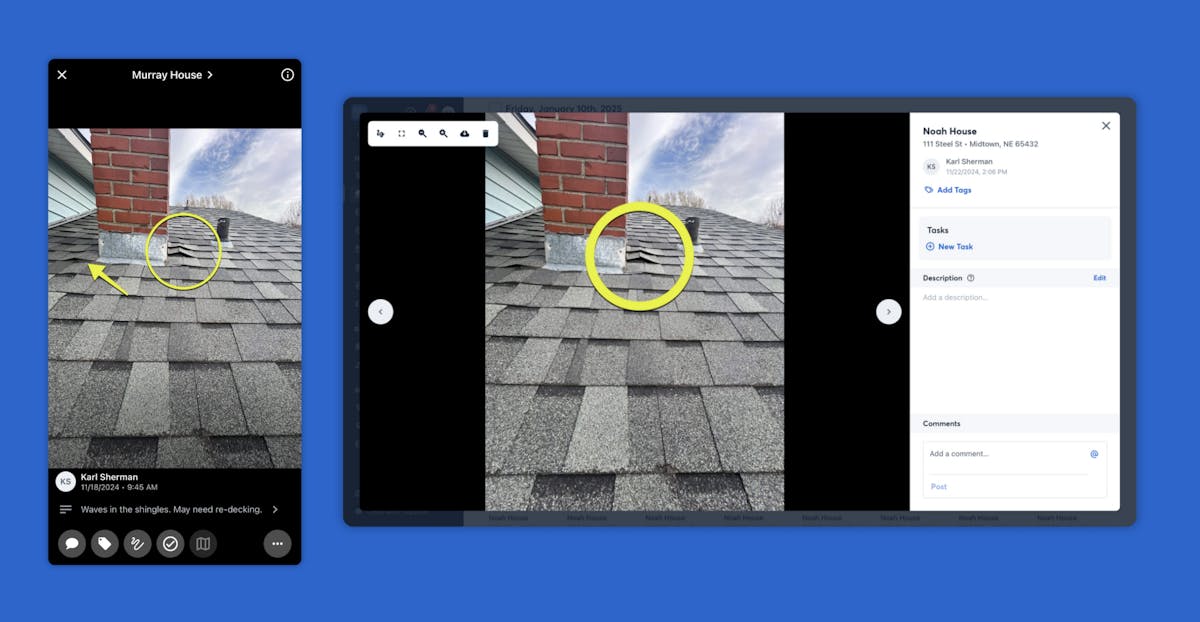
How to leave comments on photos
- Open a project and select the photo you want to discuss.
- Tap the comment icon.
- Enter your message and select Post.
- Use @ followed by a team member’s name to mention them in the conversation.
Mentioned team members receive a notification based on their notification settings. They can open the photo, review the context, and respond within the same conversation.
How to use annotations with comments
Annotations help you communicate specific details directly on job site photos. You can draw arrows, circle areas, or add text to show your crew exactly what you’re referencing.
An electrical contractor might photograph a panel installation and use an arrow to identify an area that needs inspection. The project manager can then mention the appropriate team member in the comments to coordinate the follow-up.
4. Company Dashboard
When you’re managing multiple projects, reviewing activity across your jobs helps you stay informed about what’s happening in the field. The Company Dashboard gives contractors a central place to review company-wide project activity without opening every project individually.
Owners and managers can use the dashboard to see recent updates and identify projects they want to review more closely. From there, they can open individual projects to look at photos, job details, and documented progress.
With the Company Dashboard, you can:
- Review project activity: See updates from jobs your team is working on.
- Monitor multiple projects: Get an overview of activity across your company’s jobs.
- Find relevant updates: Identify projects with recent documented activity.
- Follow up on progress: Open individual projects to review photos and additional information.
- Stay connected to field activity: Reference project updates while coordinating work from the office.

How to review project activity
- Open CompanyCam on desktop.
- Navigate to the Company Dashboard.
- Review the available company-wide activity and project information.
- Open a project you want to investigate further.
- Review its photo history and updates for additional context.
The dashboard gives you a starting point for checking documented activity across jobs. For a closer look at a project’s current status, you can review its checklists, comments, and recent photos.
How to monitor multiple jobs
A remodeling contractor managing several active projects can use CompanyCam to review updates from different crews throughout the day. Photos and project activity help the contractor see which stages of work have been documented and where additional follow-up may be needed.
Project labels can also help organize jobs by stage or priority. Together, project activity and labels give managers useful context when planning site visits or coordinating upcoming work.
5. Documents & Reports
Keeping customers and team members informed is part of managing a construction project. CompanyCam’s Documents Builder helps contractors turn project information into shareable documents that communicate job progress and completed work.
You can create reports using project photos and other relevant details, giving customers or stakeholders a record of what’s happened on the job. CompanyCam also offers AI-powered document options that help generate drafts from available project information.
With Documents & Reports, you can:
- Share progress updates: Create documents that show customers or stakeholders how work is progressing.
- Document completed work: Include photos and job details that support inspections, approvals, or final project reviews.
- Create daily logs: Record documented job activity for internal reporting and project history.
- Summarize project information: Use AI-powered document options to generate drafts based on project context.
- Keep project records accessible: Save documents within the relevant CompanyCam project for future reference.

How to create a project document
- Open the project you want to report on.
- Navigate to Documents.
- Create a new document using the available options.
- Add relevant project photos, text, and other details.
- Review the document before sharing it with the intended recipient.
You can use documents to communicate specific milestones, such as completed demolition, installation progress, or a final project walkthrough. Including relevant photos gives recipients visual context about the work being reported.
How to use AI for project reporting
CompanyCam’s AI-powered documents can help contractors create a starting point for project updates using information already documented in CompanyCam.
AI documents include:
- Progress Recap: Summarize documented project progress over a selected period.
- Daily Log: Create a record of job activity based on available project information.
- Summary: Generate an overview of relevant project information.
- Walkthrough Note: Organize details from a documented walkthrough into a shareable format.
Always review AI-generated documents before sharing them to confirm the information accurately reflects the work performed. You can edit the document and add context as needed.
Other ways to share project updates
CompanyCam also offers options for sharing project photos with customers and external teams. Depending on what you want to communicate, you can use:
- Gallery Links: Share selected photos that show specific stages or completed work.
- Timeline Links: Give recipients access to a project photo timeline that updates as new photos are added.
- Guest Access: Allow approved external collaborators to access relevant project information without giving them full company access.
These options help contractors keep customers and subcontractors informed throughout a job while keeping project information connected to CompanyCam.
Start running your work with CompanyCam
CompanyCam brings your project information and field activity together so you can manage work from setup through completion. By using Projects, Checklists, Comments & Mentions, the Company Dashboard, and Documents, your team can coordinate responsibilities and stay informed about documented progress.
Start by creating a project and inviting your crew. As your team begins adding photos and completing tasks, you can build on that information with checklists, comments, and reports that support the way your company runs its jobs.
Whether you’re managing a single crew or coordinating several active projects, CompanyCam gives you access to the job site information you need to plan the next steps.
Your jobs, all in one place.
Discover how CompanyCam brings your project information and field updates together so you can manage daily work.


